
Use Ameba As UDP Server
When surfing on internet, most of us are using TCP as its reliable and secure, however, UDP could also shine in some other area where speed is more important than integrity, and here is how Realtek's Ameba RTL8722 WiFi+BLE microcontroller works with UDP,
Preparation
Example
In this example, we connect Ameba to WiFi and use Ameba to be an UDP server. When Ameba receives a message from UDP client, it replies "acknowledged" message to client.
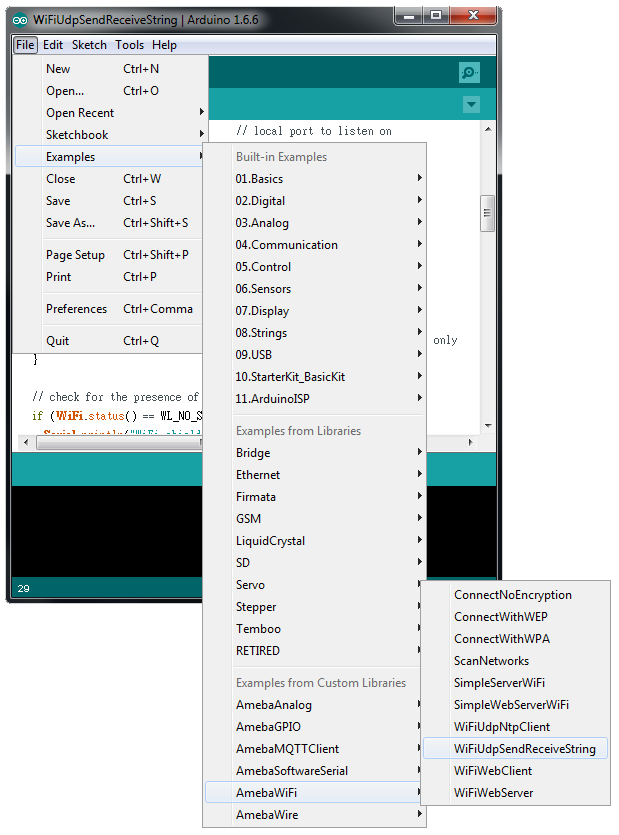
Open the WiFi Web Server example. “File” -> “Examples” -> “AmebaWiFi” -> “WiFiUdpSendReceiveString”
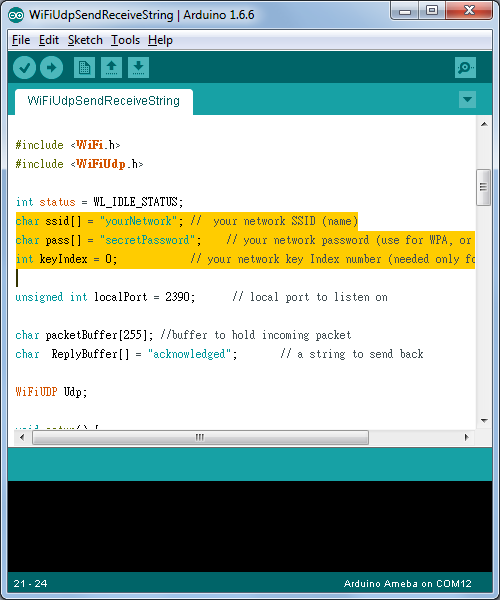
Modify related information, including ssid, pass, keyindex
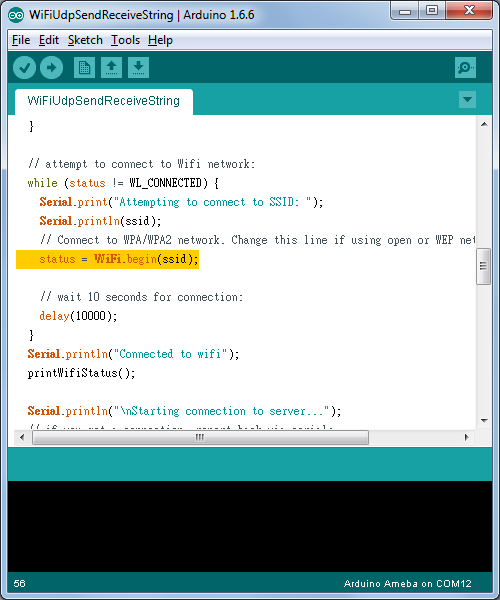
Compile the code and upload it to Ameba. After pressing the Reset button, Ameba connects to WiFi and starts the UDP server with port 2390. After the UDP server starts service, Ameba prints the "Starting connection to server" message and waits for client connection.
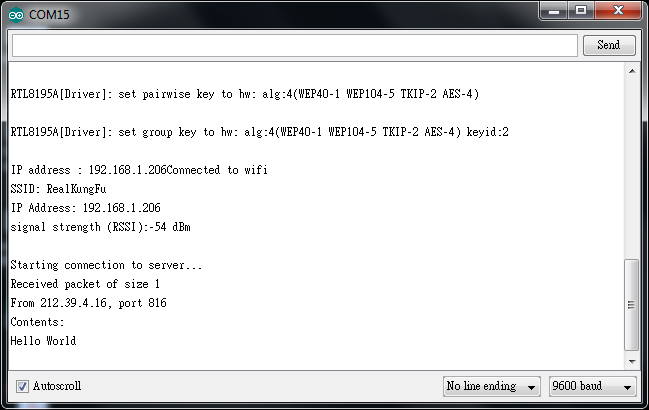
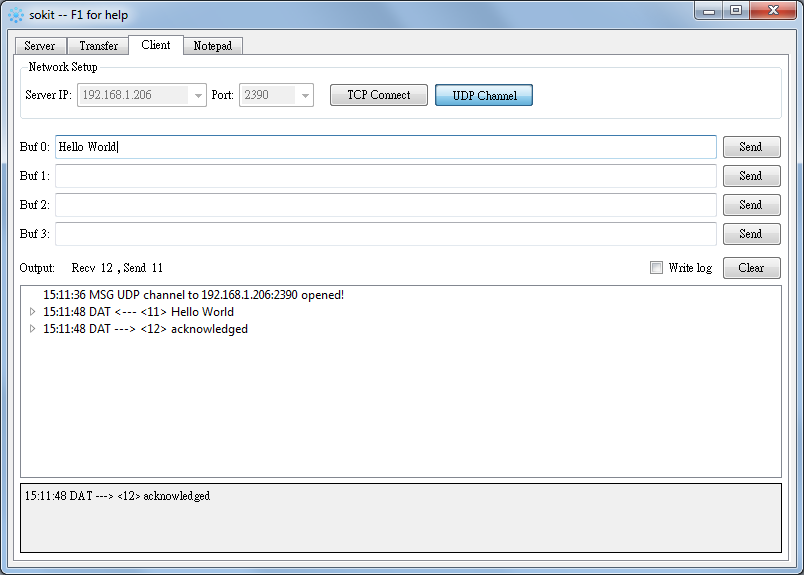
As to the UDP client, we use "sockit" program in the computer to connect to UDP server.
Choose client mode and fill in the IP of UDP server (which is the IP of Ameba) and port 2390, then click "UDP Connect".
After the connection is established, fill in "Hello World" in the Buf 0 field in sockit and click "Send". Then you can see the Ameba UDP server replies "acknowledged".
Code Reference
Ameba uses the WiFiUdp class which is compatible with Arduino WiFi Shield, so the
Refer to the Arduino tutorial for detailed information about this example.
https://www.arduino.cc/en/Tutorial/WiFiSendReceiveUDPString
First, use begin() to open an UDP port on Ameba.
https://www.arduino.cc/en/Reference/WiFiUDPBegin
Use parsePacket() to wait for data from client.
https://www.arduino.cc/en/Reference/WiFiUDPParsePacket
When a connection is established, use remoteIP() and remotePort() to get the IP and port of the client.
https://www.arduino.cc/en/Reference/WiFiUDPRemoteIP
https://www.arduino.cc/en/Reference/WiFiUDPRemoteIP
Then use read() to read the data sent by client.
https://www.arduino.cc/en/Reference/WiFiUDPRead
To send reply, use beginPacket(), write(), end().
https://www.arduino.cc/en/Reference/WiFiUDPBeginPacket
https://www.arduino.cc/en/Reference/WiFiUDPWrite
https://www.arduino.cc/en/Reference/WiFiUDPEndPacket
When surfing on internet, most of us are using TCP as its reliable and secure, however, UDP could also shine in some other area where speed is more important than integrity, and here is how Realtek's Ameba RTL8722 WiFi+BLE microcontroller works with UDP,
Preparation
- Ameba x 1
Example
In this example, we connect Ameba to WiFi and use Ameba to be an UDP server. When Ameba receives a message from UDP client, it replies "acknowledged" message to client.
Open the WiFi Web Server example. “File” -> “Examples” -> “AmebaWiFi” -> “WiFiUdpSendReceiveString”
Modify related information, including ssid, pass, keyindex
Compile the code and upload it to Ameba. After pressing the Reset button, Ameba connects to WiFi and starts the UDP server with port 2390. After the UDP server starts service, Ameba prints the "Starting connection to server" message and waits for client connection.
As to the UDP client, we use "sockit" program in the computer to connect to UDP server.
Choose client mode and fill in the IP of UDP server (which is the IP of Ameba) and port 2390, then click "UDP Connect".
After the connection is established, fill in "Hello World" in the Buf 0 field in sockit and click "Send". Then you can see the Ameba UDP server replies "acknowledged".
Code Reference
Ameba uses the WiFiUdp class which is compatible with Arduino WiFi Shield, so the
Refer to the Arduino tutorial for detailed information about this example.
https://www.arduino.cc/en/Tutorial/WiFiSendReceiveUDPString
First, use begin() to open an UDP port on Ameba.
https://www.arduino.cc/en/Reference/WiFiUDPBegin
Use parsePacket() to wait for data from client.
https://www.arduino.cc/en/Reference/WiFiUDPParsePacket
When a connection is established, use remoteIP() and remotePort() to get the IP and port of the client.
https://www.arduino.cc/en/Reference/WiFiUDPRemoteIP
https://www.arduino.cc/en/Reference/WiFiUDPRemoteIP
Then use read() to read the data sent by client.
https://www.arduino.cc/en/Reference/WiFiUDPRead
To send reply, use beginPacket(), write(), end().
https://www.arduino.cc/en/Reference/WiFiUDPBeginPacket
https://www.arduino.cc/en/Reference/WiFiUDPWrite
https://www.arduino.cc/en/Reference/WiFiUDPEndPacket


