Linksprite-Yuki
- Aug 20, 2016
- 34
- Joined
- Aug 20, 2016
- Messages
- 34
1.Create bootable TF card for pcDuino8 Uno(Ubuntu)
There is no nand flash on pcDuino8 Uno, so it store the whole system on TF card.
If you want to install or refresh the Ubuntu system on pcDuino8 Uno, you can just take the following steps to create the bootable TF card for pcDuino8 Uno:
Pre-requisites
Create
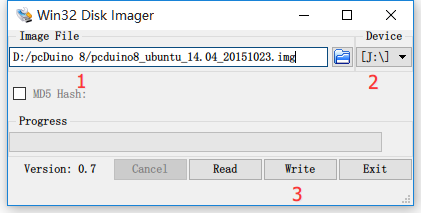
Plug TF Card Reader into Windows PC and open Win32DiskImager as administrator.
Tips: If you only have Linux or Mac OS, how to create a bootable SD card? Only dd command is needed.
<code class="lang-bash">sudo dd <span class="hljs-keyword">if</span>=&lt;image-file&gt;.img of=/dev/sdb bs=<span class="hljs-number">1</span>M
</code>
Run

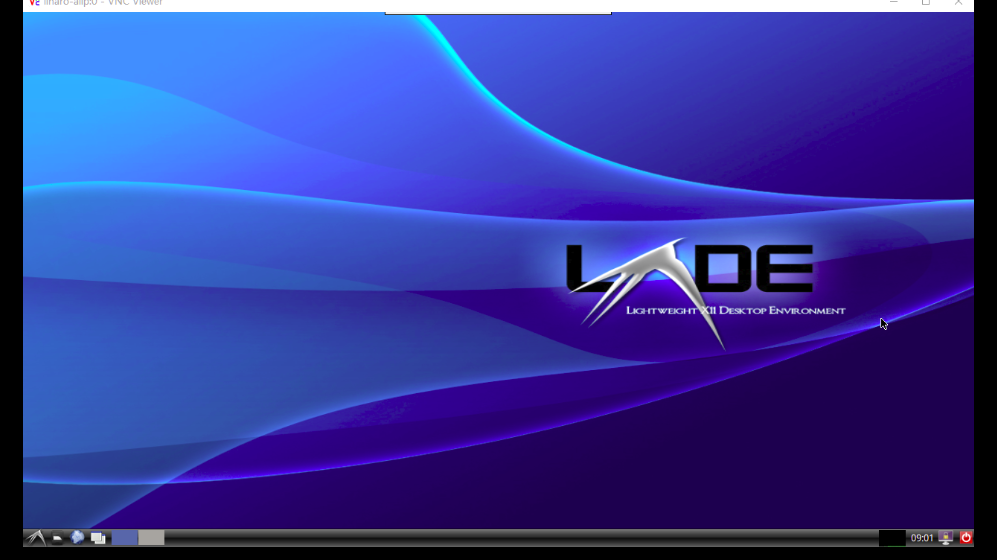
Note: For the first time boot, system initialization may take some time (about 2-3 minutes ), and USB port is disabled. Please do not shutdown before system restart.
There is no nand flash on pcDuino8 Uno, so it store the whole system on TF card.
If you want to install or refresh the Ubuntu system on pcDuino8 Uno, you can just take the following steps to create the bootable TF card for pcDuino8 Uno:
Pre-requisites
- 8G (or bigger) TF card( Speed class is recommended for Class 6 or higher)
- TF card reader
- Image for pcDuino8 Uno
- Windows tool: Win32DiskImager
Create
Plug TF Card Reader into Windows PC and open Win32DiskImager as administrator.
- Select the Image File that you unzip from the downloaded File
- Select the Device that the PC recognized
- Click the write button.
- It will say Write Successful at the end.
Tips: If you only have Linux or Mac OS, how to create a bootable SD card? Only dd command is needed.
<code class="lang-bash">sudo dd <span class="hljs-keyword">if</span>=&lt;image-file&gt;.img of=/dev/sdb bs=<span class="hljs-number">1</span>M
</code>
- if=should be your downloaded system img file
- of=should be your micro-SD card.
Run
- Plug the TF card into pcDuino8 Uno
- Connect 5V DC power input via Micro USB port
- Connect keyboard and mouse with USB hub
- Connect screen with HDMI cable.
- Power on and run
Note: For the first time boot, system initialization may take some time (about 2-3 minutes ), and USB port is disabled. Please do not shutdown before system restart.
