
You can use the serial commucations control in VB (Visual Basic) to commucate with an Arduino board. This allows one to make a more formal interface to the board.
The serial comm control is found in project/component/Microsoft Comm Control 6.0 in the VB visual studio. Selecting it adds it to the tool box. It can then be dragged on to the form. Its symbol looks like a telephone.
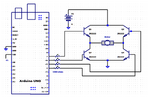
In this example an Arduino board is controlling an electric motor via an H bridge circuit. The inputs to the bridge circuit are from pins 4, 5, 6, and 7 from the Arduino board.
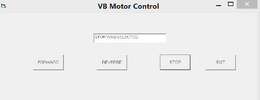
In the VB code below, the serial interface is setup on loading the form. And four buttons are added: forward, reverse, stop, and exit.
On selecting a button it sends a signal to the board which in turn outputs signals to pairs of pins to the transistors in the H bridge. A more practical interface would have code to ask the user which comm port to connect with.
' VB 6 -motor control via Arduino UNO/Mega 2560
Private Sub Form_Load()
MSComm1.RThreshold = 3
MSComm1.Settings = "9600,n,8,1"
MSComm1.CommPort = 6 'use the one IDE uses
MSComm1.PortOpen = True
MSComm1.DTREnable = False
Text1.Text = ""
End Sub
Private Sub FORWARD_Click()
Text1.Text = "FORARD DIRECTION WAS SELECTED"
MSComm1.Output = "f"
End Sub
Private Sub REVERSE_Click()
Text1.Text = "REVERSE DIRECTION WAS SELECTED"
MSComm1.Output = "r"
End Sub
Private Sub STOP_Click()
Text1.Text = "STOP WAS SELECTED"
MSComm1.Output = "s"
End Sub
Private Sub EXIT_Click()
MSComm1.Output = "s" 'make sure motor is stopped
Unload Me
End Sub
On the board side the Arduino code waits for a serial signal then sets or clears the outputs as required.
//this program receives commands via the visual basic program running on the pc
//based on: Patel, Ujash.: "Arduino + Visual Basic 6.0:Make your own software to control Arduino Robot
//outputs to the four transistors in the
// H bridge controling the motor
int pin7 = 7;
int pin6 = 6;
int pin5 = 5;
int pin4 = 4;
void setup()
{
Serial.begin(9600);
pinMode(pin7, OUTPUT);
pinMode(pin6, OUTPUT);
pinMode(pin5, OUTPUT);
pinMode(pin4, OUTPUT);
//all low/off = stopped
digitalWrite(pin4,LOW);
digitalWrite(pin5,LOW);
digitalWrite(pin6,LOW);
digitalWrite(pin7,LOW);
}
void loop()
{
if (Serial.available())
{
int command = Serial.read();
//all low/off = stopped
digitalWrite(pin4,LOW);
digitalWrite(pin5,LOW);
digitalWrite(pin6,LOW);
digitalWrite(pin7,LOW);
if (command=='f') //forward
{
digitalWrite(pin7,HIGH);
digitalWrite(pin4,HIGH);
}
if(command=='r') //reverse
{
digitalWrite(pin5,HIGH);
digitalWrite(pin6,HIGH);
}
//we initialize to stop with all LOWs above
if(command=='s') command = 's'; //dummy statement
}//end if(serial)
}//end Loop()
This project is based on Ujash Patel's book:
"Arduino + Visual Basic 6.0: Make your own software to control Arduino Robot" . Amazon.com Kindle Edition.
The serial comm control is found in project/component/Microsoft Comm Control 6.0 in the VB visual studio. Selecting it adds it to the tool box. It can then be dragged on to the form. Its symbol looks like a telephone.
In this example an Arduino board is controlling an electric motor via an H bridge circuit. The inputs to the bridge circuit are from pins 4, 5, 6, and 7 from the Arduino board.
In the VB code below, the serial interface is setup on loading the form. And four buttons are added: forward, reverse, stop, and exit.
On selecting a button it sends a signal to the board which in turn outputs signals to pairs of pins to the transistors in the H bridge. A more practical interface would have code to ask the user which comm port to connect with.
' VB 6 -motor control via Arduino UNO/Mega 2560
Private Sub Form_Load()
MSComm1.RThreshold = 3
MSComm1.Settings = "9600,n,8,1"
MSComm1.CommPort = 6 'use the one IDE uses
MSComm1.PortOpen = True
MSComm1.DTREnable = False
Text1.Text = ""
End Sub
Private Sub FORWARD_Click()
Text1.Text = "FORARD DIRECTION WAS SELECTED"
MSComm1.Output = "f"
End Sub
Private Sub REVERSE_Click()
Text1.Text = "REVERSE DIRECTION WAS SELECTED"
MSComm1.Output = "r"
End Sub
Private Sub STOP_Click()
Text1.Text = "STOP WAS SELECTED"
MSComm1.Output = "s"
End Sub
Private Sub EXIT_Click()
MSComm1.Output = "s" 'make sure motor is stopped
Unload Me
End Sub
On the board side the Arduino code waits for a serial signal then sets or clears the outputs as required.
//this program receives commands via the visual basic program running on the pc
//based on: Patel, Ujash.: "Arduino + Visual Basic 6.0:Make your own software to control Arduino Robot
//outputs to the four transistors in the
// H bridge controling the motor
int pin7 = 7;
int pin6 = 6;
int pin5 = 5;
int pin4 = 4;
void setup()
{
Serial.begin(9600);
pinMode(pin7, OUTPUT);
pinMode(pin6, OUTPUT);
pinMode(pin5, OUTPUT);
pinMode(pin4, OUTPUT);
//all low/off = stopped
digitalWrite(pin4,LOW);
digitalWrite(pin5,LOW);
digitalWrite(pin6,LOW);
digitalWrite(pin7,LOW);
}
void loop()
{
if (Serial.available())
{
int command = Serial.read();
//all low/off = stopped
digitalWrite(pin4,LOW);
digitalWrite(pin5,LOW);
digitalWrite(pin6,LOW);
digitalWrite(pin7,LOW);
if (command=='f') //forward
{
digitalWrite(pin7,HIGH);
digitalWrite(pin4,HIGH);
}
if(command=='r') //reverse
{
digitalWrite(pin5,HIGH);
digitalWrite(pin6,HIGH);
}
//we initialize to stop with all LOWs above
if(command=='s') command = 's'; //dummy statement
}//end if(serial)
}//end Loop()
This project is based on Ujash Patel's book:
"Arduino + Visual Basic 6.0: Make your own software to control Arduino Robot" . Amazon.com Kindle Edition.


